


 Notification



 Guide
Guide


This article explains the most common mistakes people make when using web objects in Adobe Captivate. It shows how issues like insecure links, incorrect embed settings, and lack of testing across browsers or devices can affect your course. By learning these tips, you will be able to use web objects more effectively and create a smoother learning experience for your learners.
Web objects in Adobe Captivate are a powerful way to bring your e-learning courses to life. They let you embed videos, web pages, HTML5 content, and PDFs directly into your slides without making learners leave the course. But like any tool, they come with a learning curve. Many new Captivate users run into the same issues when using web objects, and these mistakes can result in broken content, poor user experience, or even security problems.
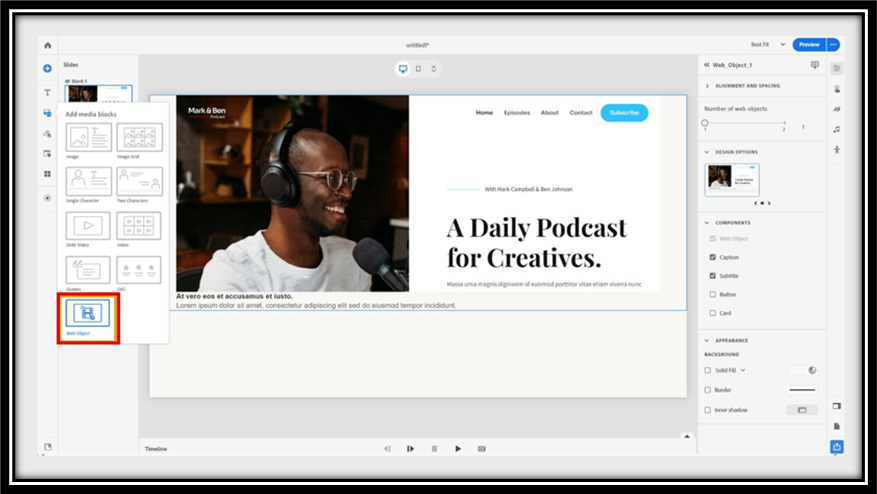
This article walks you through the most common mistakes to avoid, so you can use web objects with confidence from the very start.
Mistake 1: Using HTTP Instead of HTTPS for URLs
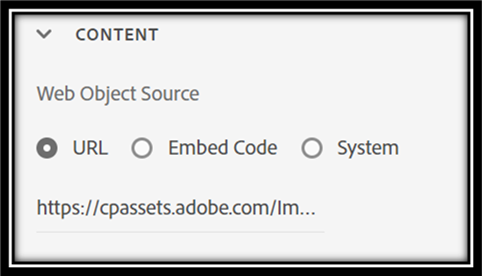
One of the first things new users do is paste a URL directly into a web object without checking whether it starts with “http” or “https”. This might seem like a small detail, but it matters a lot.
HTTP links are not secure. Modern web browsers often block or warn against loading non-secure content inside other pages. If your web object uses an HTTP link and your course is hosted on an HTTPS server, the browser may refuse to show it at all.
What to do instead:
- Always use HTTPS links when adding URLs to web objects.
- If the website you want to embed does not support HTTPS, consider finding an alternative source or hosting the content yourself.
Mistake 2: Not Editing Embed Codes to Fill the Content Area
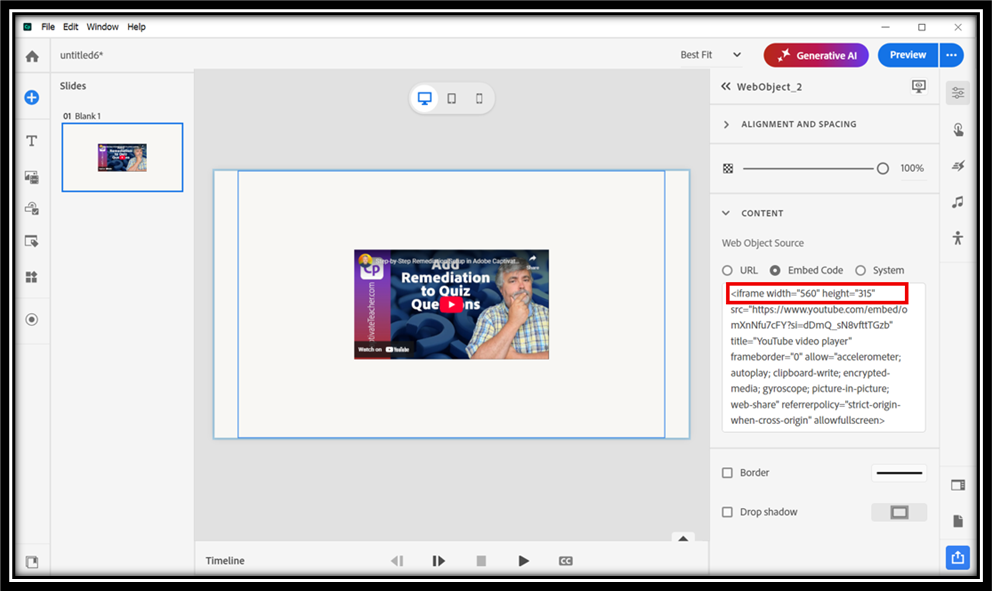
Embed codes from platforms like YouTube or Vimeo make it easy to add videos to your course. But many beginners paste an embed code and assume it will work perfectly without making any adjustments.
The problem is that embed codes usually have fixed width and height values, such as width=”560″ height=”315″. When these do not match the size of your web object content block in Captivate, the video may appear cropped, too small, or overflow the slide area.
What to do instead:
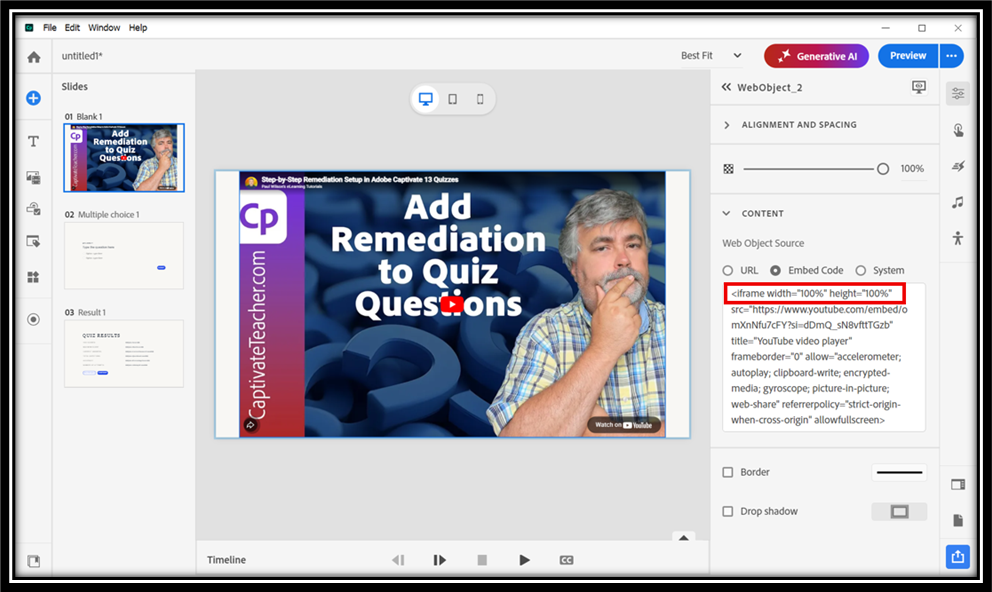
- After pasting the embed code, edit it so that the width and height are set to 100%. This ensures the video fills the entire content block properly.
- Always use the Preview option in Captivate to check how the content looks on different device sizes before you publish.
Mistake 3: Testing in Only One Browser
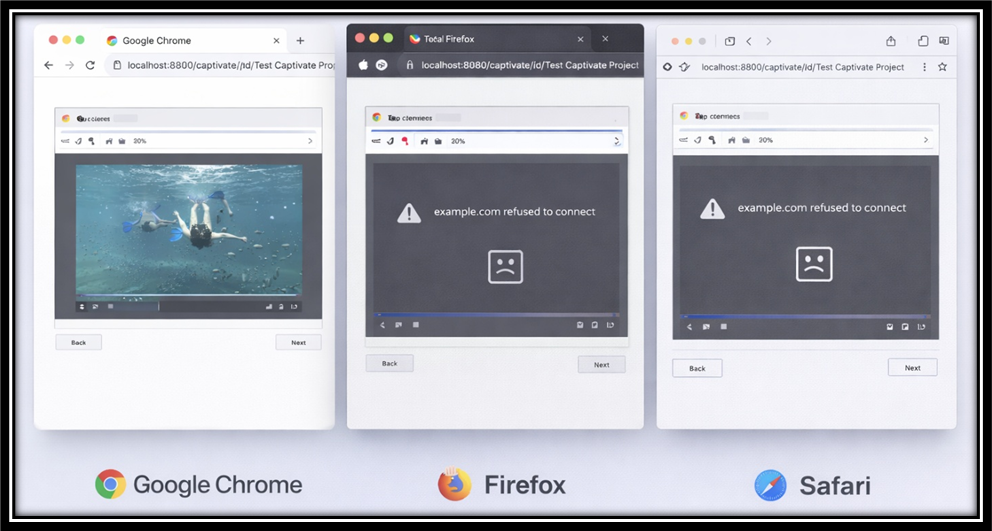
Web objects rely on the learner’s browser to display content. What works perfectly in Google Chrome may look broken in Safari, Firefox, or Edge. New Captivate users often test their course in just one browser and assume everything is fine, only to receive complaints from learners using a different one.
What to do instead:
- Test your web objects in multiple browsers, at minimum Chrome, Firefox, Safari, and Edge.
- If a browser has trouble displaying your content, note it in the course requirements or find an alternative way to deliver the same information.
Mistake 4: Trying to Embed Websites That Block Embedding
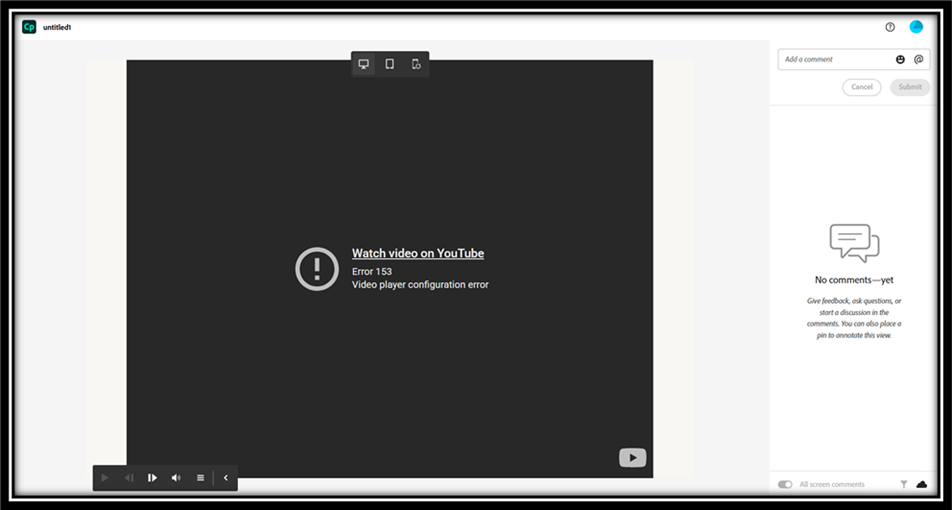
Not all websites can be embedded inside another page. Many websites use security settings that specifically prevent their content from being loaded inside an iframe, which is the method web objects use. This is called clickjacking protection, and websites like Google, Facebook, and most banking or government sites use it deliberately.
When a beginner tries to embed such a site, the web object area on the slide will appear blank or show an error. It is also worth noting that Adobe Captivate does not support redirecting to a different website through a web object.
What to do instead:
- Before adding any URL as a web object, preview it in Captivate to see if it loads. If it does not, the site is likely blocking embedding.
- Use a screenshot image with a hyperlink to open the site in a new tab as an alternative approach.
Mistake 5: Ignoring CORS Restrictions
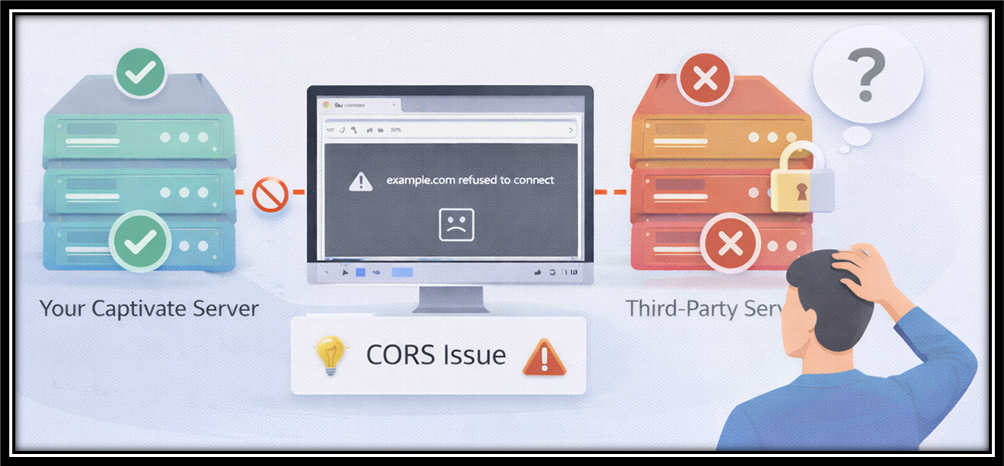
CORS stands for Cross-Origin Resource Sharing. In plain language, it is a rule that controls whether a webpage on one server is allowed to load content from a different server. If the external content you are trying to embed does not have the correct CORS settings, the browser will block it and your web object will appear blank.
Many beginners spend a long time troubleshooting this without realizing that the issue is on the content provider’s side, not in Captivate itself.
What to do instead:
- Stick to trusted platforms like YouTube, Vimeo, or your organization’s own content server when embedding external media.
- If you are embedding content from a custom server, check with your IT team to make sure CORS is properly configured.
Mistake 6: Skipping PDF Functionality Checks After Publishing
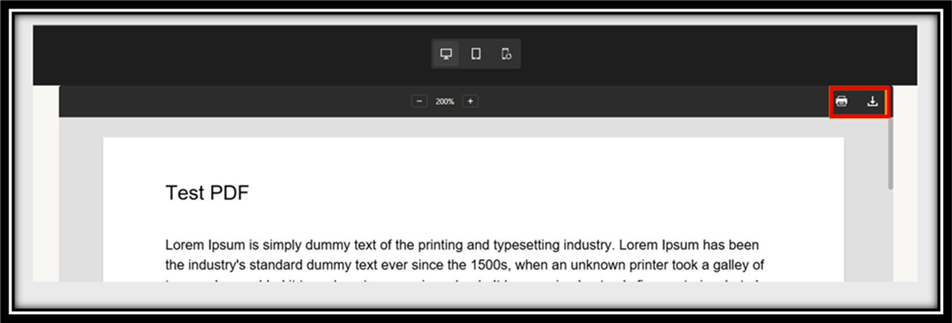
Adobe Captivate allows you to upload PDFs as web objects, which is great for including reference materials or worksheets. However, many beginners forget to test the Download and Print buttons that appear alongside PDF web objects.
When a course is published, the PDF is copied into the project files. If something goes wrong during publishing, or if the learner’s device does not fully support certain PDF features, these buttons may not work as expected.
What to do instead:
- Use Captivate’s Preview option to view the PDF web object as a learner would see it.
- Manually click the Download and Print buttons during preview to confirm they both work correctly.
- Test on different devices, including tablets and mobile phones, to ensure the PDF displays well on all screen sizes.
Mistake 7: Using Unreliable or Unlicensed Content Sources
It can be tempting to embed any video or webpage that seems relevant to your course topic. But new users often overlook two important questions: Is the content legally allowed to be embedded? And will the link still work a year from now?
Embedding a YouTube video without checking its license, or linking to a webpage that disappears months later, will break your course and could create legal issues depending on how the content is being used.
What to do instead:
- Always use content from trusted, legal sources and check whether embedding is allowed before you add it.
- Regularly review embedded links to make sure they still work and are accessible in the regions where your learners are based.
- When possible, host the content on a platform your organization controls so you have full ownership and reliability.
Mistake 8: Not Testing on Mobile and Tablet Devices
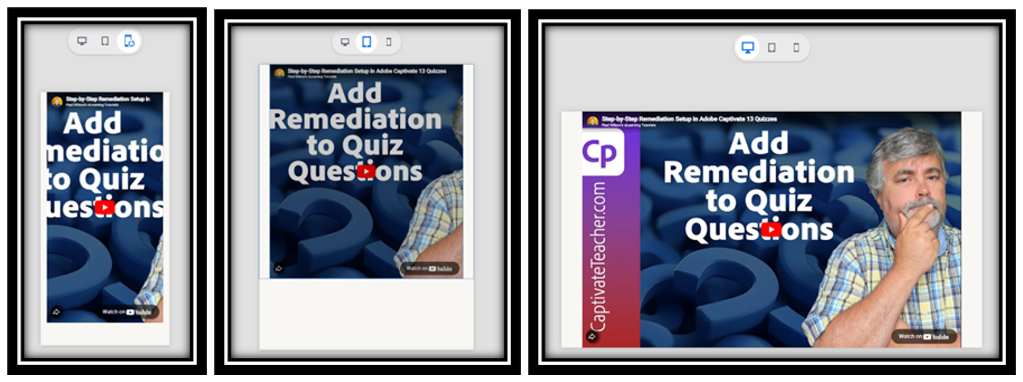
Many learners access e-learning courses on mobile phones and tablets. But beginners often design and test only on a desktop computer. Web objects that look great on a large screen can become difficult to interact with on a small touchscreen.
A video that plays fine on a laptop might be too small to watch on a phone. A webpage embedded as a web object may require frustrating zooming and scrolling on mobile devices.
What to do instead:
- Use Captivate’s built-in device preview feature to check how your web objects appear on different screen sizes.
- Make sure embedded content is responsive by setting the embed code width and height to 100%, which helps it adjust properly to any screen size.
Mistake 9: Not Planning for Script Blocking
Some learners access courses through corporate networks or devices that have script blocking enabled. This means JavaScript-based content, including many interactive web objects, will simply not load for those users.
Beginners often do not realize this is a possibility until they start receiving complaints from learners in certain organizations or regions where these restrictions are common.
What to do instead:
- Test your course with script blocking turned on in your browser to see what the learner experience looks like.
- Work with your team to provide fallback content, such as a text description or downloadable file, for learners whose devices cannot load the web object.
Mistake 10: Overloading Slides with Too Much External Content
Adobe Captivate allows a maximum of two web objects per slide. New users sometimes try to pack too much external content into a single slide, which can slow downloading times, overwhelm learners, and create a cluttered layout.
Even when two objects are technically allowed, placing both on a single slide without careful thought about layout and spacing can make the experience feel chaotic and unprofessional.
What to do instead:
- Keep your slides focused. One web object per slide is usually the cleaner, more learner-friendly choice.
- Use captions, subtitles, and buttons thoughtfully to guide learners and provide context around the web object.
- Customize the appearance of your content block, including background color, borders, and spacing, to make the web object feel like a natural part of the slide.
Final Thoughts
Web objects are one of the most exciting features in Adobe Captivate. They allow you to bring in rich, interactive, and up-to-date content from the web, all without the learner ever leaving your course. But getting them right requires a bit of planning and testing.
To summarize: always use HTTPS links, edit your embed codes to fill the content area, test across multiple browsers and devices, and make sure the content you are using is legal and reliable. Plan for edge cases like script blocking and CORS restrictions, and keep your slides clean and focused.
By avoiding these common mistakes, you will save yourself a lot of troubleshooting time and, more importantly, you will give your learners a smooth, professional experience that keeps them engaged with your course.
Web objects in Adobe Captivate are a powerful way to bring your e-learning courses to life. They let you embed videos, web pages, HTML5 content, and PDFs directly into your slides without making learners leave the course. But like any tool, they come with a learning curve. Many new Captivate users run into the same issues when using web objects, and these mistakes can result in broken content, poor user experience, or even security problems.
This article walks you through the most common mistakes to avoid, so you can use web objects with confidence from the very start.
Mistake 1: Using HTTP Instead of HTTPS for URLs
One of the first things new users do is paste a URL directly into a web object without checking whether it starts with “http” or “https”. This might seem like a small detail, but it matters a lot.
HTTP links are not secure. Modern web browsers often block or warn against loading non-secure content inside other pages. If your web object uses an HTTP link and your course is hosted on an HTTPS server, the browser may refuse to show it at all.
What to do instead:
- Always use HTTPS links when adding URLs to web objects.
- If the website you want to embed does not support HTTPS, consider finding an alternative source or hosting the content yourself.
Mistake 2: Not Editing Embed Codes to Fill the Content Area
Embed codes from platforms like YouTube or Vimeo make it easy to add videos to your course. But many beginners paste an embed code and assume it will work perfectly without making any adjustments.
The problem is that embed codes usually have fixed width and height values, such as width=”560″ height=”315″. When these do not match the size of your web object content block in Captivate, the video may appear cropped, too small, or overflow the slide area.
What to do instead:
- After pasting the embed code, edit it so that the width and height are set to 100%. This ensures the video fills the entire content block properly.
- Always use the Preview option in Captivate to check how the content looks on different device sizes before you publish.
Mistake 3: Testing in Only One Browser
Web objects rely on the learner’s browser to display content. What works perfectly in Google Chrome may look broken in Safari, Firefox, or Edge. New Captivate users often test their course in just one browser and assume everything is fine, only to receive complaints from learners using a different one.
What to do instead:
- Test your web objects in multiple browsers, at minimum Chrome, Firefox, Safari, and Edge.
- If a browser has trouble displaying your content, note it in the course requirements or find an alternative way to deliver the same information.
Mistake 4: Trying to Embed Websites That Block Embedding
Not all websites can be embedded inside another page. Many websites use security settings that specifically prevent their content from being loaded inside an iframe, which is the method web objects use. This is called clickjacking protection, and websites like Google, Facebook, and most banking or government sites use it deliberately.
When a beginner tries to embed such a site, the web object area on the slide will appear blank or show an error. It is also worth noting that Adobe Captivate does not support redirecting to a different website through a web object.
What to do instead:
- Before adding any URL as a web object, preview it in Captivate to see if it loads. If it does not, the site is likely blocking embedding.
- Use a screenshot image with a hyperlink to open the site in a new tab as an alternative approach.
Mistake 5: Ignoring CORS Restrictions
CORS stands for Cross-Origin Resource Sharing. In plain language, it is a rule that controls whether a webpage on one server is allowed to load content from a different server. If the external content you are trying to embed does not have the correct CORS settings, the browser will block it and your web object will appear blank.
Many beginners spend a long time troubleshooting this without realizing that the issue is on the content provider’s side, not in Captivate itself.
What to do instead:
- Stick to trusted platforms like YouTube, Vimeo, or your organization’s own content server when embedding external media.
- If you are embedding content from a custom server, check with your IT team to make sure CORS is properly configured.
Mistake 6: Skipping PDF Functionality Checks After Publishing
Adobe Captivate allows you to upload PDFs as web objects, which is great for including reference materials or worksheets. However, many beginners forget to test the Download and Print buttons that appear alongside PDF web objects.
When a course is published, the PDF is copied into the project files. If something goes wrong during publishing, or if the learner’s device does not fully support certain PDF features, these buttons may not work as expected.
What to do instead:
- Use Captivate’s Preview option to view the PDF web object as a learner would see it.
- Manually click the Download and Print buttons during preview to confirm they both work correctly.
- Test on different devices, including tablets and mobile phones, to ensure the PDF displays well on all screen sizes.
Mistake 7: Using Unreliable or Unlicensed Content Sources
It can be tempting to embed any video or webpage that seems relevant to your course topic. But new users often overlook two important questions: Is the content legally allowed to be embedded? And will the link still work a year from now?
Embedding a YouTube video without checking its license, or linking to a webpage that disappears months later, will break your course and could create legal issues depending on how the content is being used.
What to do instead:
- Always use content from trusted, legal sources and check whether embedding is allowed before you add it.
- Regularly review embedded links to make sure they still work and are accessible in the regions where your learners are based.
- When possible, host the content on a platform your organization controls so you have full ownership and reliability.
Mistake 8: Not Testing on Mobile and Tablet Devices
Many learners access e-learning courses on mobile phones and tablets. But beginners often design and test only on a desktop computer. Web objects that look great on a large screen can become difficult to interact with on a small touchscreen.
A video that plays fine on a laptop might be too small to watch on a phone. A webpage embedded as a web object may require frustrating zooming and scrolling on mobile devices.
What to do instead:
- Use Captivate’s built-in device preview feature to check how your web objects appear on different screen sizes.
- Make sure embedded content is responsive by setting the embed code width and height to 100%, which helps it adjust properly to any screen size.
Mistake 9: Not Planning for Script Blocking
Some learners access courses through corporate networks or devices that have script blocking enabled. This means JavaScript-based content, including many interactive web objects, will simply not load for those users.
Beginners often do not realize this is a possibility until they start receiving complaints from learners in certain organizations or regions where these restrictions are common.
What to do instead:
- Test your course with script blocking turned on in your browser to see what the learner experience looks like.
- Work with your team to provide fallback content, such as a text description or downloadable file, for learners whose devices cannot load the web object.
Mistake 10: Overloading Slides with Too Much External Content
Adobe Captivate allows a maximum of two web objects per slide. New users sometimes try to pack too much external content into a single slide, which can slow downloading times, overwhelm learners, and create a cluttered layout.
Even when two objects are technically allowed, placing both on a single slide without careful thought about layout and spacing can make the experience feel chaotic and unprofessional.
What to do instead:
- Keep your slides focused. One web object per slide is usually the cleaner, more learner-friendly choice.
- Use captions, subtitles, and buttons thoughtfully to guide learners and provide context around the web object.
- Customize the appearance of your content block, including background color, borders, and spacing, to make the web object feel like a natural part of the slide.
Final Thoughts
Web objects are one of the most exciting features in Adobe Captivate. They allow you to bring in rich, interactive, and up-to-date content from the web, all without the learner ever leaving your course. But getting them right requires a bit of planning and testing.
To summarize: always use HTTPS links, edit your embed codes to fill the content area, test across multiple browsers and devices, and make sure the content you are using is legal and reliable. Plan for edge cases like script blocking and CORS restrictions, and keep your slides clean and focused.
By avoiding these common mistakes, you will save yourself a lot of troubleshooting time and, more importantly, you will give your learners a smooth, professional experience that keeps them engaged with your course.
You must be logged in to post a comment.

- Most Recent
- Most Relevant


